Difference Between File and Folder With Key Similarities Explained
Published: 30 Jul 2026
Have you ever wondered what the difference between file and folder really is? Many beginners see both on a computer or mobile device but are not sure how they work.
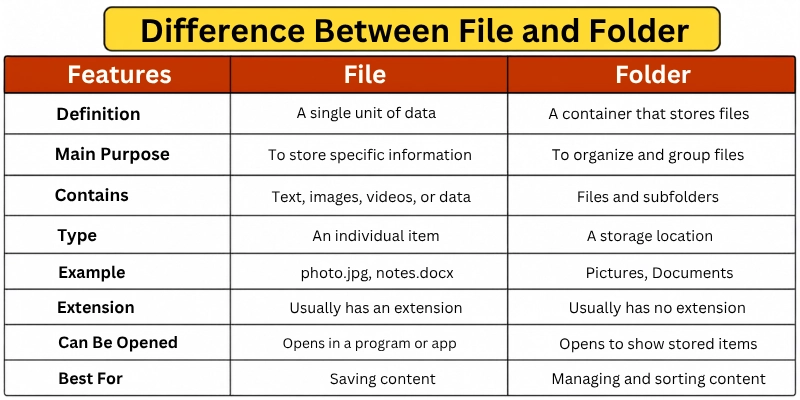
A file contains actual digital content, such as a document, image, video, or audio recording. A folder acts like a container that keeps related files and subfolders organized.
Knowing how files and folders differ makes it easier to save information, find documents quickly, avoid confusion, and create a clean storage system on your computer, phone, USB drive, or cloud account.
What Is a File?
A file is a collection of digital information stored on a computer, mobile phone, tablet, USB drive, or another storage device.
Files can contain different types of data. For example, a file may contain:
- Text
- Images
- Videos
- Audio
- Software instructions
- Presentations
- Spreadsheets
Every file usually has a name and a file extension.
For example:
- report.docx
- photo.jpg
- video.mp4
- budget.xlsx
- presentation.pptx
The part after the dot is called the file extension. It tells the operating system what type of file it is and which program should open it.
For example, a .jpg file is usually an image, while a .pdf file is a document.
What Is a Folder?
A folder is a digital container used to organize files and other folders.
Folders do not usually store content in the same way that files do. Instead, they help users arrange related files in one place.
For example, a folder named School Work may contain:
- Homework files
- Notes
- Presentations
- Images
- Project documents
A folder can also contain another folder. A folder inside another folder is often called a subfolder.
For example:
- School Work
- Mathematics
- Science
- English
This structure makes it easier to find, manage, and organize digital information.
File vs Folder Comparison Table
| Features | File | Folder |
|---|---|---|
| Main purpose | Stores digital information | Organizes files and folders |
| Contains data | Yes | Usually no direct content |
| Can contain files | No | Yes |
| Can contain folders | No | Yes |
| Has a file extension | Usually yes | No |
| Opens in a program | Yes | Opens in a file manager |
| Examples | PDF, JPG, MP4, DOCX | Documents, Pictures, Downloads |
Key Differences Between a File and a Folder
Files and folders are both important parts of a computer’s storage system, but they perform different functions. A file stores actual information, while a folder helps organize that information.
Here are the main differences between a file and a folder.
1. A File Stores Data, While a Folder Organizes Data
The biggest difference between a file and a folder is their main purpose.
A file stores actual digital information. This information may include text, images, audio, videos, presentations, spreadsheets, or software data.
For example, a file named annual-report.pdf contains the actual content of a business report.
A folder does not normally contain readable information by itself. Instead, it provides a place where related files and folders can be stored.
For example, a folder named Annual Reports may contain several PDF reports from different years.
Therefore, a file is used to save information, while a folder is used to arrange that information.
2. Files Usually Have Extensions, While Folders Do Not
Most files have a file extension at the end of their name. The extension helps the operating system identify the file type.
For example:
- .docx represents a Microsoft Word document
- .jpg represents an image
- .mp3 represents an audio file
- .mp4 represents a video file
- .pdf represents a PDF document
A file named holiday-photo.jpg tells the computer that it is an image file.
Folders normally do not have file extensions. A folder may simply be named Holiday Photos, Documents, or Client Projects.
The folder name describes what is stored inside it, but it does not represent a particular file format.
3. Files Open in Applications, While Folders Open in File Managers
A file usually opens in a program designed to support its format.
For example:
- A Word file opens in Microsoft Word
- A PDF file opens in a PDF reader
- An image opens in a photo viewer
- A video opens in a media player
- A spreadsheet opens in Microsoft Excel
A folder does not need one of these applications. It usually opens inside a file management program.
Examples include:
- File Explorer on Windows
- Finder on macOS
- Files app on Android and iPhone
When you open a folder, you see the files and subfolders stored inside it. When you open a file, you see or use its actual content.
4. A Folder Can Contain Multiple Items
A folder can contain many different items in one location.
It may include:
- Documents
- Images
- Videos
- Audio files
- Software files
- Other folders
For example, a folder named Website Project may contain content documents, website images, design files, reports, and subfolders.
A normal file cannot contain folders in the same way. It usually contains only the information related to its specific format.
However, compressed files such as ZIP files are a special case. A ZIP file may contain several files and folders, but it is still treated as a single compressed file by the operating system.
5. Files Contain Editable Content
Many files contain information that users can open and edit.
For example, you can:
- Add text to a Word document
- Change numbers in a spreadsheet
- Edit an image
- Trim a video
- Update a presentation
- Modify a text file
A folder does not contain editable content in the same way. You cannot write a paragraph or add an image directly inside a folder.
However, you can manage a folder by:
- Renaming it
- Moving it
- Copying it
- Deleting it
- Adding files to it
- Removing files from it
This means a file’s content can be edited, while a folder’s structure and contents can be managed.
6. Files and Folders Have Different Icons
Operating systems use different icons to help users identify files and folders.
A folder is commonly shown using a folder-shaped icon. On Windows, folders often appear as yellow icons.
A file icon usually depends on its format or associated program.
For example:
- A Word file may show the Microsoft Word icon
- A PDF file may show a PDF symbol
- An image file may display a small preview
- A video file may display a thumbnail
- An Excel file may show the Microsoft Excel icon
These different icons make it easier for users to quickly understand whether an item is a file or a folder.
7. Files and Folders Are Used Differently
You use a file when you want to create, save, open, or edit digital content.
For example, you may create a file to:
- Write an assignment
- Save a photograph
- Store a business report
- Record audio
- Create a presentation
- Save a video
You use a folder when you want to group and manage related files.
For example, you may create separate folders for:
- Personal documents
- Business records
- School subjects
- Client projects
- Family photos
- Financial reports
Files help you store individual pieces of information, while folders help you manage a collection of information.
Similarities Between a File and a Folder
Files and folders serve different purposes, but they also share several common features. Both are used to store and manage digital information on computers, mobile devices, external drives, and cloud platforms.
Here are the main similarities between files and folders.
1. Both Can Be Named
You can give names to both files and folders.
Clear names make information easier to find.
For example:
- Monthly Sales Report.pdf
- Sales Reports
2. Both Can Be Moved
Files and folders can be moved from one location to another.
For example, you can move them:
- From the desktop to the Documents folder
- From a computer to a USB drive
- From one folder to another
- From local storage to cloud storage
3. Both Can Be Copied
You can create copies of both files and folders.
Copying a folder also copies the files and subfolders stored inside it.
4. Both Can Be Deleted
Files and folders can be deleted when they are no longer needed.
In most operating systems, deleted items first go to the Recycle Bin or Trash.
5. Both Can Be Shared
You can share files and folders through:
- Cloud storage
- Messaging apps
- File-sharing services
- Local networks
Sharing a folder is useful when you want to send several related files together.
6. Both Can Be Protected
Files and folders can be protected using:
- Passwords
- Permissions
- Encryption
- Access controls
This helps prevent unauthorized users from viewing or changing important information.
When Should You Use a File?
You should use a file when you need to create, save, or store information.
Use a file when you want to:
- Write a document
- Save a photo
- Store a video
- Create a spreadsheet
- Save a presentation
- Download software
- Record audio
- Keep project data
A file is the correct choice when the main goal is to store actual digital content.
When Should You Use a Folder?
You should use a folder when you need to organize files.
Use a folder when you want to:
- Group related documents
- Separate personal and work files
- Organize photos by year or event
- Manage client projects
- Arrange school subjects
- Store downloads by category
- Create a clear storage structure
Folders are especially useful when you have many files and need a simple way to find them.
Which One Is Better: File or Folder?
A file and a folder serve different purposes, so one is not better than the other.
A file is better for storing information. A folder is better for organizing information.
You usually need both.
For example, a file stores your report, while a folder keeps that report together with related images, spreadsheets, and notes.
The best approach is to use clear file names and well-organized folders. This makes your computer easier to manage and helps you find information quickly.
Tips for Using Files and Folders and Mistakes to Avoid
Use these simple tips to keep your files organized and avoid common storage mistakes.
Tips
- Use clear file and folder names.
- Create folders for different categories.
- Keep related files in one place.
- Use subfolders only when needed.
- Back up important files regularly.
- Delete duplicate and unnecessary files.
Mistakes to Avoid
- Do not save every file on the desktop.
- Avoid names like File1 or New Folder.
- Do not change file extensions without understanding them.
- Check a folder before deleting it.
- Avoid creating too many subfolders.
- Do not keep only one copy of important files.
Conclusion
So guys, in this article, we’ve covered the difference between file and folder in detail. Although both are important for managing digital information, they serve different purposes.
From a practical point of view, I recommend using folders for each project, subject, client, or category and storing related files inside them. Be careful when deleting or moving a folder because all the files and subfolders inside it may also be affected.
Review your current storage system, organize any misplaced files, and share this guide with someone who is learning basic computer concepts.



- Be Respectful
- Stay Relevant
- Stay Positive
- True Feedback
- Encourage Discussion
- Avoid Spamming
- No Fake News
- Don't Copy-Paste
- No Personal Attacks
- Be Respectful
- Stay Relevant
- Stay Positive
- True Feedback
- Encourage Discussion
- Avoid Spamming
- No Fake News
- Don't Copy-Paste
- No Personal Attacks
